
Entry Detail View - Administrator Guide
The entry detail page is your central hub for reviewing, managing, and making decisions about individual entries. This comprehensive view shows everything you need to know about an entry and provides tools to manage it effectively.
Accessing Entry Detail Pages
You can access an entry's detail page from several places:
- Entries list: Click on any entry ID or entry title
- Jury view: Click on an entry or piece in the jury interface
- Search results: Click on entries found through search
- Direct navigation: Use Previous/Next buttons to move between entries
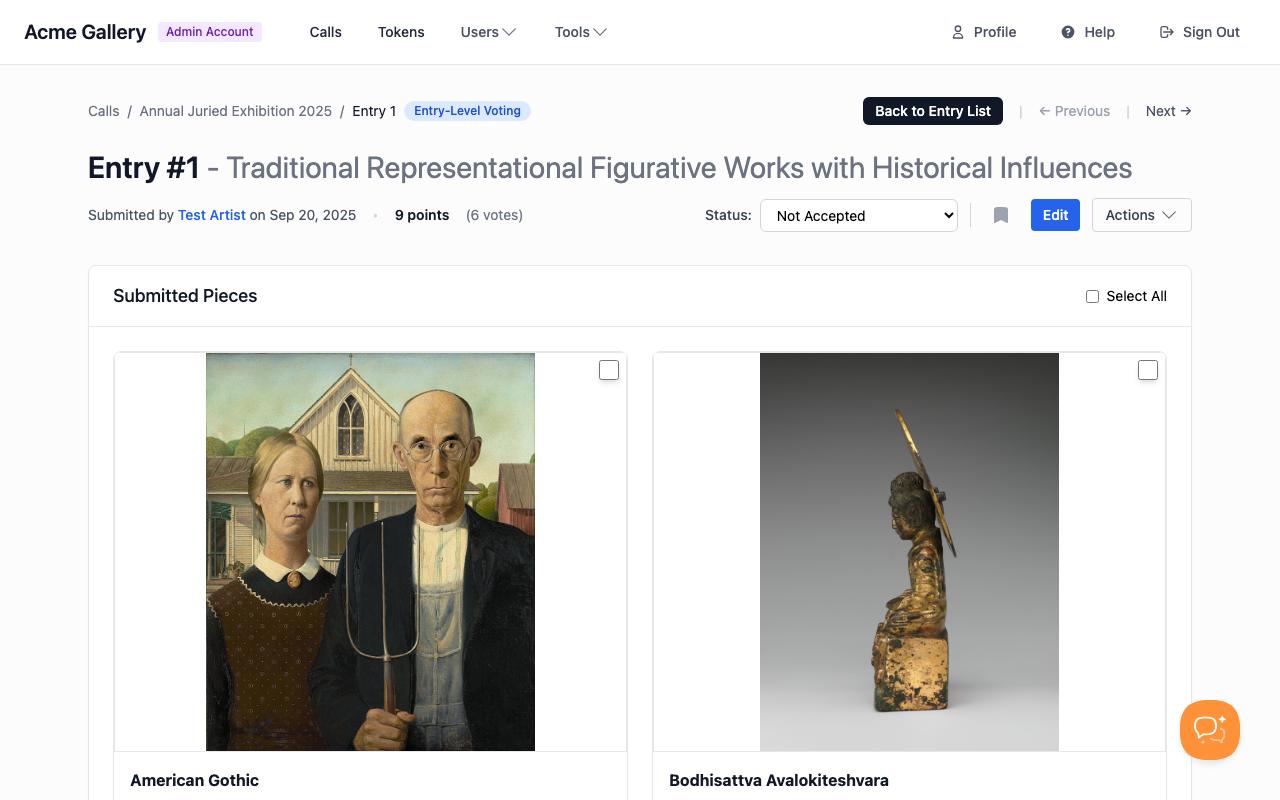
Page Layout and Navigation
Breadcrumb Navigation
At the top of the page, you'll see: - Calls → Call Name → Entry #123 - A badge showing whether voting is by Entry or by Piece - Back to Entry List button (or "Back to Jury View" if you came from jury)
Previous/Next Navigation
Use the ← Previous and Next → buttons to move through entries sequentially. This is especially useful when reviewing entries one by one.
Entry Header Information
The header shows key information about the entry:
Entry Identification
- Entry ID: The unique entry number (e.g., "Entry #456")
- Category: If the call uses categories, the entry's category is shown
- Voting mode badge: Shows whether jurors vote by Entry or by Piece
Submission Information
- Artist name: Who submitted the entry (clickable link to their profile)
- Submission date: When the entry was submitted
- Points: Total points from jury voting
- Votes: Number of votes cast
Note: In blind jury mode, artist names are hidden from jurors but visible to administrators.
Status Management
As an administrator, you'll see a Status dropdown that lets you change the entry status immediately. Common statuses include: - Not Submitted - Submitted - Show to Jury - Accepted - Not Accepted - Waitlist - Partially Accepted - And more...
Changes take effect immediately when you select a new status.
Entry Actions Menu
The Actions dropdown provides quick access to common tasks:
- Print Entry: Opens a printable version of the entry (useful for physical jury review)
- Add Award: Shows the awards section (see Awards section below)
- Assign Space: Shows the space assignment section for the entry and pieces
- Mark selected as sold / Mark selected as available: When you have selected one or more pieces with the checkboxes in Submitted Pieces, you can set or clear sold status from here. Select only unsold pieces to see Mark selected as sold, or only sold pieces to see Mark selected as available. See How do I change the price of items, or mark them as sold? for step-by-step detail (including what happens to price).
- Delete Entry: Permanently removes the entry (requires confirmation)
Bookmarking
Click the bookmark icon to bookmark entries for later review. Bookmarked entries are marked with a filled bookmark icon and can be filtered in the entries list.
Edit Entry
Click "Edit" to modify entry details, pieces, or other information. See How do I edit an entry? for details.
Awards Section
The awards section (accessed via Actions → Add Award) lets you assign awards to entries and pieces:
- Entry Award: Assign an award to the entire entry (e.g., "Best of Show", "First Place")
- Piece Awards: Assign awards to individual pieces within the entry
Awards are saved immediately and appear on the entry detail page and in exports.
Submitted Pieces
The "Submitted Pieces" section shows all artwork pieces in the entry:
Piece Display
Each piece shows: - Image or video: Full artwork display with zoom/lightbox functionality - Title: Piece title (or "Untitled") - Details: Dimensions, materials, year, price (if provided), and a SOLD line when the gallery has marked that piece as sold - Status: Current piece status with dropdown to change it - Voting information: Points and votes (if voting by piece) - Additional views: If a piece has multiple views/angles, you can navigate through them
Bulk Piece Management
As an administrator, you can bulk update piece statuses:
- Select pieces: Use checkboxes on each piece (or "Select All" at the top)
- Choose status: Use the bulk update dropdown that appears
- Click Update: All selected pieces are updated at once
Use this to: Quickly accept or reject multiple pieces, organize pieces into groups, or update statuses across pieces.
Individual Piece Actions
Each piece has its own status dropdown for individual updates. You can also: - View piece details (dimensions, materials, etc.) - Navigate through additional views if available - See voting breakdown for that piece (if voting by piece)
Entry Information
Below the pieces, you'll see entry-level information:
Description of Entry
The artist's description of their entry, explaining what they submitted and why.
Statement Specific to Entry
Any statement the artist provided specifically for this entry (separate from their general artist statement).
Category and Space Type
- Category: The category the entry was submitted to
- Space Type: Whether it's "Art" or "Booth/Display" (for craft shows)
Artist Information
The artist information section shows:
- Artist name: Clickable link to their profile
- Contact information: Email, phone, address (if provided)
- Website: Artist's website link
- Artist statement: Their general artist statement
- Portfolio pieces: Link to view their full portfolio
Note: In blind jury mode, jurors don't see this information, but administrators always do.
Voting Breakdown (Admin Only)
If your call uses jury voting with multiple categories, you'll see a "Voting Breakdown by Category" section showing:
- Category name: Each voting category (e.g., "Technical Skill", "Creativity")
- Points: Total points in that category
- Votes: Number of votes in that category
- Average: Average score per vote in that category
Use this to: Understand which aspects of the entry jurors liked most, identify strengths and weaknesses, or make informed decisions about acceptance.
Note: Jurors can only see their own votes, not votes from other jurors. Only administrators see the complete voting breakdown.
Notes Section
The Notes section shows internal notes about the entry:
- View all notes: See notes from all administrators and jurors
- Add notes: Click "Add Note" to add your own notes
- Delete notes: Administrators can delete any note (click trash icon)
Use notes to: - Track concerns or questions about entries - Coordinate with other reviewers - Document decisions and reasoning - Flag entries for follow-up
See How to use entry notes for more details.
What Jurors See vs. What Admins See
Jurors See:
- Entry information (description, statement)
- Pieces (with images/videos)
- Their own votes (can vote if voting is active)
- Notes (can add notes)
- Entry status (read-only)
- Cannot see: Artist contact info (in blind jury mode), votes from other jurors, voting breakdown, admin actions
Administrators See:
- Everything jurors see, plus:
- Complete artist information (always visible, even in blind jury mode)
- Voting breakdown by category
- All votes from all jurors
- Status management (can change entry status)
- Edit entry functionality
- Awards management
- Delete entry functionality
- Bookmarking
Tips for Using Entry Detail Pages
Efficient Review Workflow
- Use Previous/Next navigation: Move through entries sequentially without returning to the list
- Bookmark entries: Mark entries you want to revisit or discuss
- Add notes as you review: Document thoughts immediately while reviewing
- Use bulk piece updates: When reviewing multiple pieces, select and update them together
Making Decisions
- Review all pieces: Make sure you've seen all artwork before deciding
- Check voting breakdown: See how jurors scored different aspects
- Read notes: Check if other reviewers have concerns or comments
- Consider entry as a whole: Look at the complete entry, not just individual pieces
Status Management
- Change status immediately: Use the status dropdown for quick updates
- Use bulk updates: For multiple entries, use the entries list bulk update feature
- Track status changes: Status changes are logged in entry history
Common Tasks
Accepting an Entry
- Review all pieces and entry information
- Check voting breakdown (if applicable)
- Change status dropdown to "Accepted"
- Optionally assign an award via Actions → Add Award
Rejecting an Entry
- Review the entry
- Change status dropdown to "Not Accepted"
- Optionally add a note explaining why (for internal reference)
Partially Accepting Pieces
- Review all pieces
- Select pieces you want to accept (using checkboxes)
- Use bulk update to set selected pieces to "Accepted"
- Set remaining pieces to "Not Accepted"
- Change entry status to "Partially Accepted" (if desired)
Adding Awards
- Click Actions → Add Award
- Enter award name in "Entry Award" field (e.g., "Best of Show")
- Click Save
- For piece awards, enter award names for individual pieces
- Click Save for each piece award
Related Documentation
- How do I edit an entry? - Modifying entry details
- How to use entry notes - Adding and managing notes
- How do I bulk update entry statuses? - Bulk operations
- Piece Status Management - Understanding piece statuses