
How do I bulk update entry statuses?
Bulk updating lets you change the status of multiple entries or pieces at once, saving you time when managing large numbers of submissions. Instead of updating each one individually, you can select multiple items using checkboxes and update them all with a single action.
EntryThingy supports two types of bulk updates: - Bulk updating entry statuses (on the Entries list page) - Bulk updating piece statuses (on the Pieces page or individual entry detail pages)
Bulk Updating Entry Statuses
Let's say you want to change all entries that are "Submitted" to "Show to Jury" in one move. Here's how:
Step-by-Step Process
- Navigate to your call and click "Entries" to view all entries
- Filter by the status you want to change. In our example, select "Submitted" from the status filter to view all submitted entries:
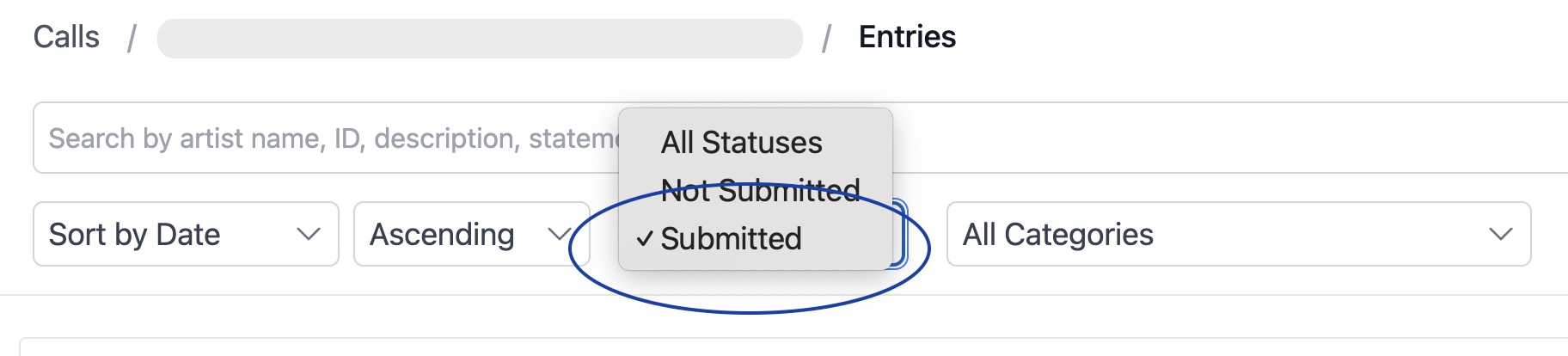
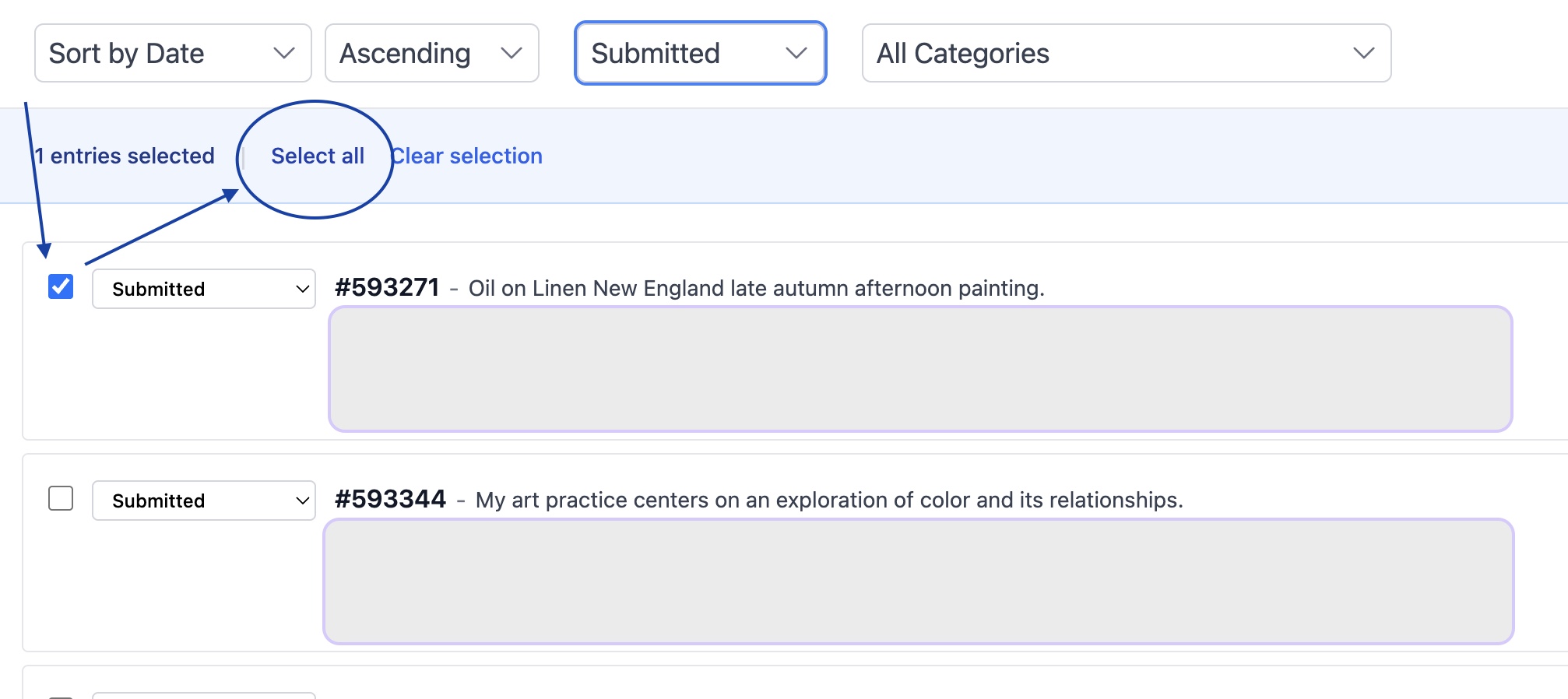
- Select entries using checkboxes. Each entry has a checkbox on the left side. You can:
- Select individual entries: Click checkboxes one by one
- Select all visible entries: Click "Select all" button (appears after selecting at least one entry)
- Choose the new status. In the bulk actions bar at the top, use the "Update entry status to:" dropdown to select the status you want (e.g., "Show to Jury")
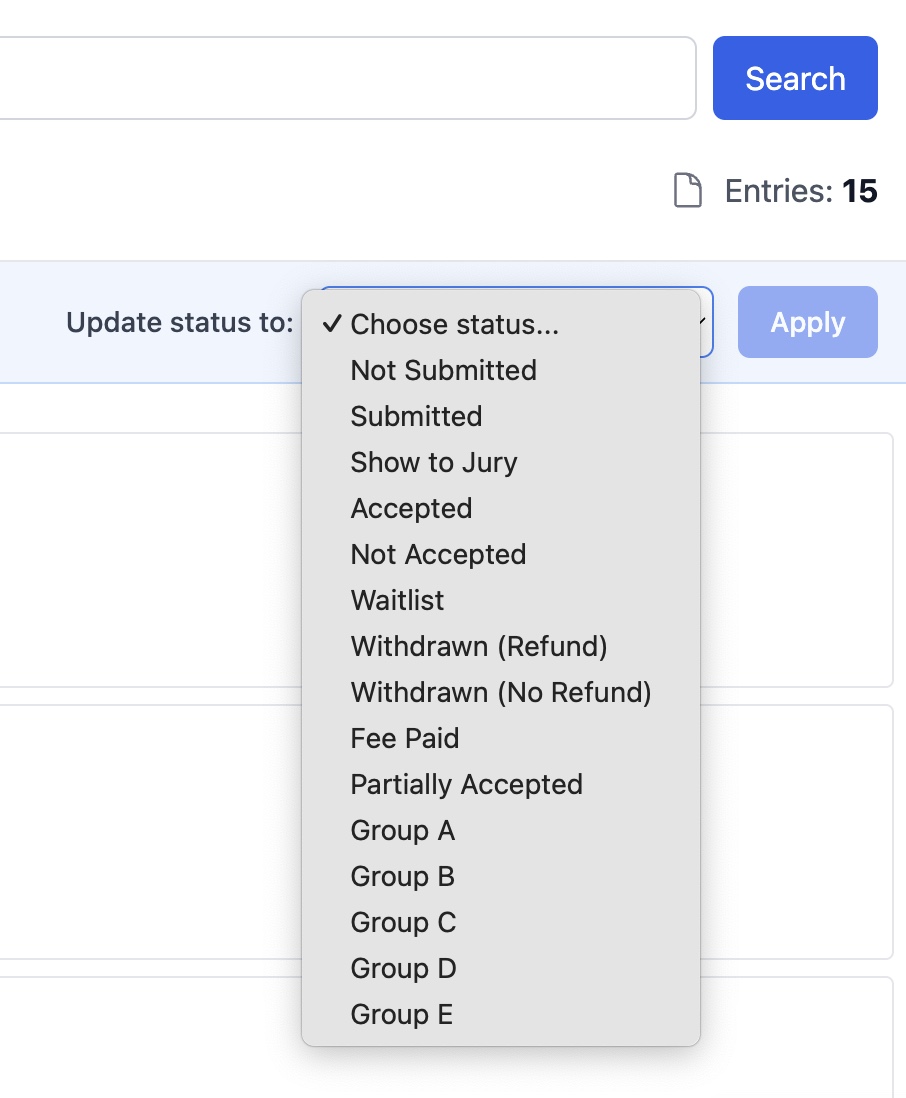
- Click "Apply" to update all selected entries
- Verify the changes. After the page refreshes, you may see "No Entries Selected" because you're still filtering for the old status. Clear the filters to see your updated entries!
The Bulk Actions Bar
When you select at least one entry, a bulk actions bar appears at the top of the page showing: - Selected count: "X entries selected" - Select all button: Selects all entries on the current page - Clear selection button: Deselects all entries - Status dropdown: Choose the new status - Apply button: Updates all selected entries
The bar changes color (to blue) when entries are selected, making it easy to see when bulk actions are available.
Important: Artist Visibility
When you bulk update entries to a decision status (Accepted, Not Accepted, or Partially Accepted), artists can see the new status immediately on their Applications page — even before you send a notification email. Waitlist appears as "Submitted" to artists, so it does not reveal a decision. To control the timing of your announcement, update all statuses in a single session and then send emails right away. See Best Practices for Announcing Jury Results for a recommended workflow.
What Statuses Can You Bulk Update To?
You can bulk update entries to any valid entry status, including: - Not Submitted - Submitted - Show to Jury - Accepted - Not Accepted - Waitlist - Withdrawn (Refund) - Withdrawn (No Refund) - Fee Paid - Partially Accepted - Group A, B, C, D, E (for organization)
Tips for Bulk Entry Updates
Use filters first: - Filter by the current status you want to change - This helps you see exactly which entries will be affected - Makes it easier to verify your selection
Select all vs. individual selection: - Select all: Updates every entry on the current page - Individual selection: More control, updates only specific entries - You can mix both approaches (select all, then uncheck specific entries)
Pagination: - Bulk updates only affect entries on the current page - If you have multiple pages, you'll need to update each page separately - Or increase "per page" to see more entries at once
Verification: - After updating, check a few entries to confirm the status changed correctly - The status dropdown next to each entry shows the current status - You can also filter by the new status to verify
Bulk Updating Piece Statuses
You can also bulk update the status of individual pieces (artwork) within entries. This is useful when you need to accept or reject specific pieces rather than entire entries.
On the Pieces Page
The Pieces page shows all pieces from all entries in your call, making it easy to update pieces across multiple entries:
- Navigate to your call and click "Pieces" (or "Pieces Wall")
- Select pieces using checkboxes. Each piece has a checkbox in the top right corner. You can:
- Select individual pieces: Click checkboxes one by one
- Select all visible pieces: Click "Select all" button (appears after selecting at least one piece)
- Choose the new status. In the bulk actions bar at the top, use the "Update piece status to:" dropdown to select the status
- Click "Apply" to update all selected pieces
- Confirm the update. You'll see a confirmation message showing how many pieces were updated
On Individual Entry Detail Pages
You can also bulk update pieces when viewing a single entry:
- Open an entry from the Entries list
- Select pieces using checkboxes. Each piece in the "Submitted Pieces" section has a checkbox
- Select all pieces using the "Select All" checkbox at the top of the pieces section
- Choose the new status from the bulk update dropdown that appears
- Click "Update" to apply the changes
Note: When you bulk update pieces on an entry detail page, the entry status may automatically update: - If all pieces are accepted → Entry status becomes "Accepted" - If some pieces are accepted → Entry status becomes "Partially Accepted" - This happens automatically to keep entry and piece statuses in sync
What Statuses Can You Bulk Update Pieces To?
Piece statuses are slightly different from entry statuses. You can bulk update pieces to: - Submitted - Accepted - Not Accepted - Waitlist - Group A, B, C, D, E (for organization)
Note: Some entry-level statuses (like "Show to Jury" or "Fee Paid") don't apply to individual pieces, so they're not available in piece bulk updates.
Tips for Bulk Piece Updates
Filter before selecting: - Use piece status filters to see only pieces with a specific status - Makes it easier to select the right pieces - Helps verify your selection before updating
Cross-entry updates: - On the Pieces page, you can update pieces from different entries in one action - Useful for accepting specific pieces across multiple entries - The confirmation message shows how many entries were affected
Entry status sync: - When you update pieces, entry status may update automatically - All pieces accepted → Entry becomes "Accepted" - Some pieces accepted → Entry becomes "Partially Accepted" - This keeps everything consistent
Individual vs. bulk: - Each piece also has its own status dropdown for individual updates - Use bulk updates for multiple pieces, individual dropdowns for single pieces - Both methods work the same way
Common Scenarios
Scenario 1: Moving All Submitted Entries to Jury Review
Goal: Change all "Submitted" entries to "Show to Jury" so jurors can start reviewing.
Steps: 1. Go to Entries page 2. Filter by "Submitted" status 3. Click "Select all" 4. Choose "Show to Jury" from dropdown 5. Click "Apply"
Result: All submitted entries are now visible to jurors.
Scenario 2: Accepting All Pieces from Selected Entries
Goal: Accept all pieces from entries that were fully accepted.
Steps: 1. Go to Pieces page 2. Filter by entry status "Accepted" (if available) 3. Select all pieces (or filter by piece status first) 4. Choose "Accepted" from dropdown 5. Click "Apply"
Result: All pieces are marked as accepted, matching their entry status.
Scenario 3: Organizing Pieces into Groups
Goal: Group pieces for different exhibition rounds or categories.
Steps: 1. Go to Pieces page 2. Select pieces you want in Group A 3. Choose "Group A" from dropdown 4. Click "Apply" 5. Repeat for Group B, C, etc.
Result: Pieces are organized into groups for easier management.
Scenario 4: Accepting One Piece Per Entry
Goal: Accept only one piece from each entry (common for juried shows).
Steps: 1. Go to Pieces page 2. Filter by entry to see pieces from one entry 3. Select the piece you want to accept 4. Choose "Accepted" from dropdown 5. Select remaining pieces from that entry 6. Choose "Not Accepted" or "Group B" (to hide them) 7. Repeat for each entry
Result: Each entry has one accepted piece, others are hidden or rejected.
Scenario 5: Moving Entries Back to Draft
Goal: Change "Submitted" entries back to "Not Submitted" so artists can edit them.
Steps: 1. Go to Entries page 2. Filter by "Submitted" status 3. Select entries that need editing 4. Choose "Not Submitted" from dropdown 5. Click "Apply"
Result: Selected entries become drafts, artists can edit them, and tokens are refunded.
Understanding Status Changes
Entry Status Changes
When you bulk update entry statuses:
Token handling: - Changing to "Submitted" → Token is charged (if not already charged) - Changing from "Submitted" → Token is refunded - Other status changes → No token impact
Visibility: - "Show to Jury" → Entries become visible to jurors - "Accepted" → Entries are marked as accepted - "Not Submitted" → Entries become drafts (not visible to jurors)
Piece Status Changes
When you bulk update piece statuses:
Entry status sync: - All pieces accepted → Entry becomes "Accepted" - Some pieces accepted → Entry becomes "Partially Accepted" - This happens automatically
Jury visibility: - Pieces with status "Submitted", "Accepted", or "Not Accepted" are visible to jurors - Pieces with "Group A-E" statuses are hidden from jurors - Use groups to organize pieces without showing them to jurors
Best Practices
1. Filter First, Then Select
Before selecting entries or pieces, use filters to narrow down what you're working with: - Filter by current status - Filter by category (for entries) - Filter by piece status (for pieces) - This makes your selection more accurate
2. Verify Before Applying
Before clicking "Apply": - Check the selected count (e.g., "15 entries selected") - Review a few selected items to ensure they're correct - Make sure you've chosen the right status
3. Use Select All Strategically
"Select all" selects everything on the current page: - Useful when you want to update all visible items - Remember: Only affects current page, not all pages - You can uncheck specific items after selecting all
4. Clear Filters After Updating
After bulk updating: - Clear status filters to see updated entries/pieces - Verify the changes were applied correctly - Check that the right items were updated
5. Combine with Individual Updates
Bulk updates work alongside individual updates: - Use bulk updates for many items with the same status - Use individual dropdowns for specific items that need different statuses - Mix both approaches as needed
6. Document Your Changes
For important status changes: - Note why you made the change - Keep track of which entries/pieces were affected - This helps with troubleshooting and auditing
Troubleshooting
"I don't see checkboxes" - Make sure you're logged in as an Administrator (not just a Juror) - Checkboxes only appear for administrators - Refresh the page if they don't appear
"Select all doesn't select everything" - "Select all" only selects items on the current page - If you have multiple pages, you'll need to update each page - Increase "per page" to see more items at once
"The Apply button is disabled" - Make sure you've selected at least one entry or piece - Make sure you've chosen a status from the dropdown - Both are required before Apply becomes active
"Status didn't change" - Check for error messages after clicking Apply - Verify you have administrator permissions - Try refreshing the page to see updated statuses
"Entry status changed when I updated pieces" - This is normal! Entry status syncs with piece statuses - All pieces accepted → Entry becomes "Accepted" - Some pieces accepted → Entry becomes "Partially Accepted" - This keeps everything consistent
"I updated the wrong entries" - You can always change statuses back - Use filters to find the incorrectly updated entries - Bulk update them to the correct status
"Pieces aren't updating" - Make sure pieces have checkboxes (admin-only feature) - Verify you're on the Pieces page or entry detail page - Check that you clicked "Apply" after selecting status
Summary
Bulk updating saves time when managing many entries or pieces:
For Entry Statuses: - Use checkboxes on the Entries list page - Filter by current status first - Select entries, choose new status, click Apply
For Piece Statuses: - Use checkboxes on the Pieces page or entry detail pages - Select pieces, choose new status, click Apply - Entry status may update automatically based on piece statuses
Key features: - Select individual items or use "Select all" - Update multiple items at once - Works across multiple entries (for pieces) - Automatic entry status sync for piece updates
Bulk updates make it easy to manage large numbers of submissions efficiently, whether you're moving entries to jury review, organizing pieces into groups, or updating statuses after jurying.