
I need to edit an entry in my call
As an administrator, you can edit any entry in your call at any time, regardless of whether it's been submitted or whether the deadline has passed. This is helpful when artists need corrections, when you're entering submissions on behalf of artists, or when you need to fix errors.
How to Edit an Entry
- Log in as an Administrator and navigate to your call
- Click on "Entries" to view all entries
- Find the specific entry you want to edit
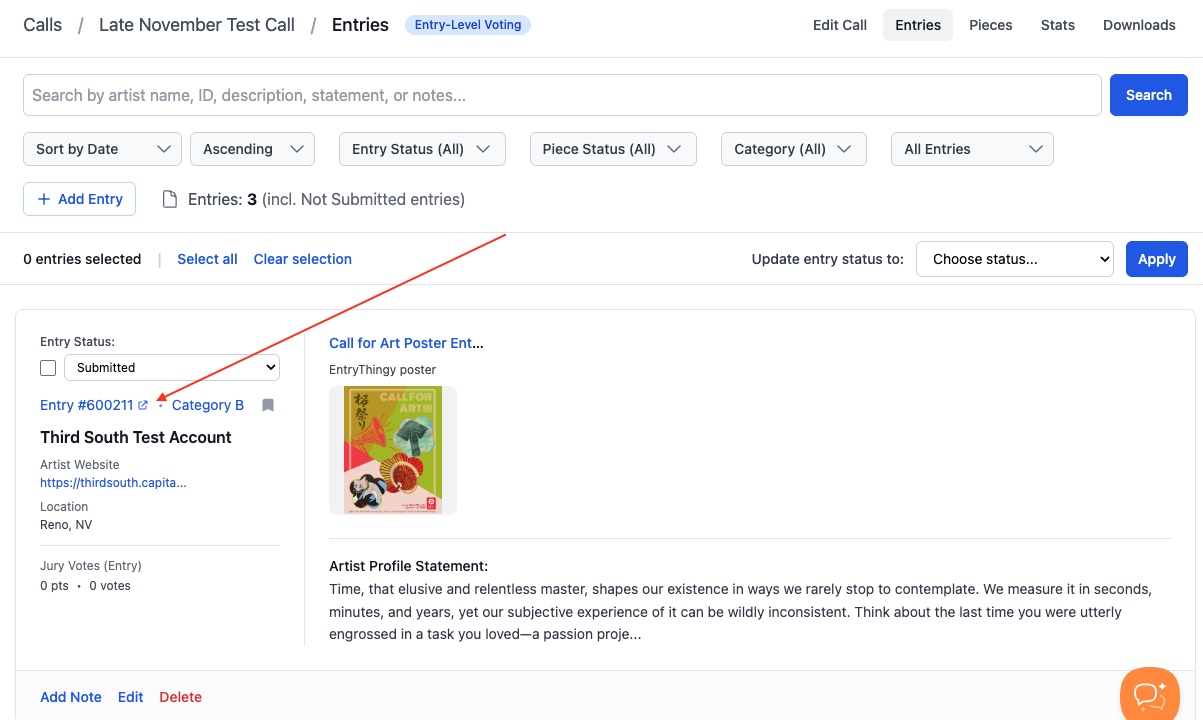
- Click on the Entry ID to open the entry detail page:
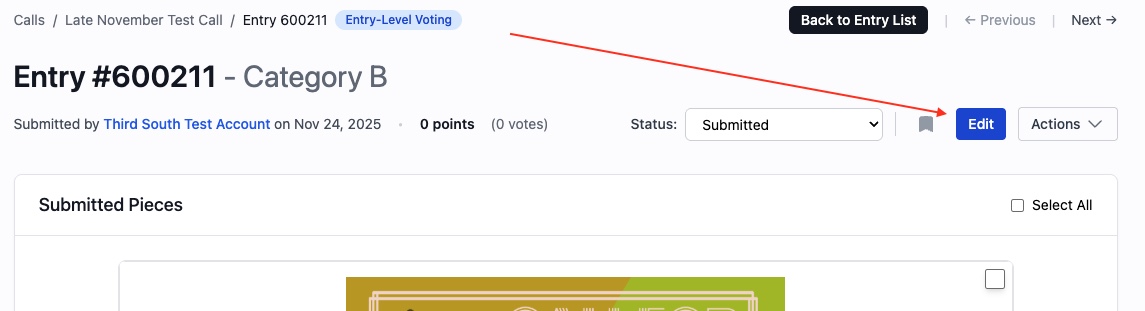
- Click the "Edit" button (blue button in the top right):
- Make your changes to any editable fields
- Click "Save" when finished
The edit form works just like the artist application form—you'll see all the same fields and can make changes as if you were the artist themselves.
What You Can Edit
When editing an entry, you can change:
Entry-Level Information
- Description of Entry: The description specific to this call submission
- Category: The category or discipline (if your call uses categories)
- How did you hear about us?: How the artist found your call
- Artist Profile Statement: The artist's general statement about their work (saved to their profile)
- Resume/CV: The artist's resume (saved to their profile)
- Publicity Permission: Whether the artist allows you to use their work for promotion
- Additional Signup Info: Any additional information collected
Piece-Level Information
For each piece of artwork in the entry, you can edit:
- Piece Title: The title of the artwork
- Piece Description: Description of the individual piece
- Dimensions: Height, width, and depth (if applicable)
- Material: What the piece is made of
- Price: Sale price (if applicable)
- Year: When the piece was created
- Artwork Images: Upload, replace, or delete images
- Additional Views: Add or remove additional views of pieces (for 3D work)
What You Cannot Edit
Some things cannot be changed through the edit form:
- Entry Owner: The artist who owns the entry (to change this, you'd need to create a new entry)
- Entry Status: Status must be changed separately using the status dropdown (see below)
- Payment Information: Payment details are managed separately
- Submission Date: Automatically recorded when entry is submitted
Editing Submitted Entries
You can edit submitted entries at any time—there are no restrictions for administrators. This is different from artists, who can only edit submitted entries if: - Your call has "Allow Editing After Submission" enabled, AND - The deadline hasn't passed
As an administrator, you bypass these restrictions. You can edit submitted entries even if: - The deadline has passed - "Allow Editing After Submission" is disabled - The entry has been reviewed by jurors
Important: Editing a submitted entry does not automatically change its status. The entry remains "Submitted" (or whatever status it currently has) unless you manually change it.
Status Changes When Editing
Editing an entry does not change its status automatically. Here's how status works:
If Entry is "Not Submitted" (Draft)
- Editing and saving keeps it as "Not Submitted"
- You can change the status manually using the status dropdown if needed
- No token is charged until status changes to "Submitted"
If Entry is "Submitted"
- Editing and saving keeps it as "Submitted"
- The entry remains visible to jurors (if status is "Show to Jury")
- No additional token is charged
- The artist's payment status is preserved
Manually Changing Status
If you need to change an entry's status:
- Go to the entry detail page
- Use the status dropdown (not the edit form)
- Select the new status
- The status change happens immediately
Common scenarios: - Change "Not Submitted" to "Submitted": Entry becomes finalized, token is charged - Change "Submitted" to "Not Submitted": Entry becomes a draft, token is refunded - Change to "Show to Jury": Entry becomes visible to jurors for review
Impact on Jurying and Voting
If Entry Status is "Show to Jury"
Editing does not affect jurying: - Jurors continue to see the updated information - Existing votes and scores are preserved - Changes appear immediately in the jury view - No need to re-submit or change status
Example: If a juror has already voted on an entry, and you edit the description, the juror will see the new description the next time they view the entry, but their vote remains unchanged.
If Entry Has Been Accepted or Rejected
You can still edit: - Editing doesn't change acceptance/rejection status - Updated information appears in all views - Useful for correcting information after jurying
Note: If you need to change acceptance/rejection status, use the status dropdown or piece status controls, not the edit form.
Best Practice
If jurors are actively reviewing entries and you make significant changes: - Consider notifying jurors if changes are substantial - Major changes (like replacing artwork images) might warrant re-review - Minor corrections (typos, formatting) typically don't need notification
Common Scenarios
Scenario 1: Artist Requests a Correction
Situation: An artist emails asking to fix a typo in their description.
Solution: 1. Find the entry in your Entries list 2. Click Edit 3. Fix the typo 4. Click Save 5. Entry remains "Submitted" and visible to jurors
No status change needed—the correction appears immediately.
Scenario 2: Adding Missing Information
Situation: An entry is missing required information (like dimensions or materials).
Solution: 1. Edit the entry 2. Add the missing information to the appropriate piece(s) 3. Save 4. Entry is now complete
Note: If the entry wasn't fully submitted due to missing information, you might need to change status to "Submitted" after editing.
Scenario 3: Replacing Artwork Images
Situation: An artist wants to replace an image with a better quality version.
Solution: 1. Edit the entry 2. Navigate to the piece with the image 3. Delete the old image 4. Upload the new image 5. Save
Impact: Jurors will see the new image immediately. Existing votes are preserved.
Scenario 4: Fixing Category Errors
Situation: An entry was submitted in the wrong category.
Solution: 1. Edit the entry 2. Change the category dropdown 3. Save
Note: If your call uses categories for jurying, you might want to verify jurors can still see the entry in the correct category view.
Scenario 5: Entering Submissions on Behalf of Artists
Situation: You're manually entering submissions received by mail or in-person.
Solution: 1. Use "Add Entry on Behalf of Artist" to create the entry 2. Entry starts as "Not Submitted" 3. Edit to add all information and artwork 4. When complete, change status to "Submitted" 5. If jurying has started, change status to "Show to Jury"
Workflow: Create → Edit → Submit → Show to Jury
Best Practices
1. Edit Before Jurying When Possible
If you know entries need corrections, edit them before jurors start reviewing. This ensures jurors see accurate information from the start.
2. Communicate Significant Changes
If you make major changes (like replacing artwork) after jurying has started, consider: - Notifying jurors if the change is substantial - Documenting why the change was made - Ensuring the change doesn't affect fairness
3. Verify After Editing
After making changes: - Review the entry to ensure changes saved correctly - Check that all pieces display properly - Verify images uploaded successfully - Confirm status is correct
4. Use Status Changes Strategically
- "Not Submitted" → "Submitted": When entry is complete and ready
- "Submitted" → "Show to Jury": When ready for jurors to review
- "Show to Jury" → Other statuses: Based on jury results
5. Preserve Entry History
EntryThingy tracks when entries are edited. If you need to see edit history or understand what changed, check the entry's activity or contact support.
Troubleshooting
"I can't find the Edit button" - Make sure you're logged in as an Administrator (not just a Juror) - Verify you're viewing the entry detail page (not just the list) - The Edit button appears in the top right of the entry detail page
"My changes aren't saving" - Make sure you clicked "Save" (not just "Cancel") - Check for error messages that might indicate validation issues - Verify you have administrator permissions
"The entry status changed when I edited" - Editing shouldn't change status automatically - Check if you accidentally changed the status dropdown - Status changes are separate from editing
"Jurors aren't seeing my changes" - Changes appear immediately in jury view - If status is "Show to Jury," jurors will see updates - Have jurors refresh their browser if changes don't appear
"I need to change who owns the entry" - You cannot change entry ownership through editing - Create a new entry for the correct artist instead - Or contact support for assistance
Summary
As an administrator, you have full editing capabilities:
- ✅ Edit any entry at any time, regardless of status or deadline
- ✅ Change entry and piece information including descriptions, categories, dimensions, materials, prices, and images
- ✅ Edit submitted entries without restrictions
- ✅ Preserve entry status when editing (status doesn't change automatically)
- ✅ Maintain jurying integrity (votes and scores are preserved when editing)
Remember: - Editing doesn't change status—use the status dropdown for that - Changes appear immediately to jurors (if entry is "Show to Jury") - Always click "Save" after making changes - Verify changes saved correctly before closing
Editing entries gives you flexibility to correct errors, add missing information, and help artists when needed, all while maintaining the integrity of your jurying process.