
How does the new downloader work?
The Downloads page is your command center for exporting call data. Whether you need a quick export or a carefully curated dataset, we've got you covered. Let's explore what's available!
Getting to the Downloads Page
- Log in with your admin account
- Click "Calls" in the top navigation bar
- Click on the call you want to download data from
- Click the "Downloads" button (you'll find it in the call navigation menu)
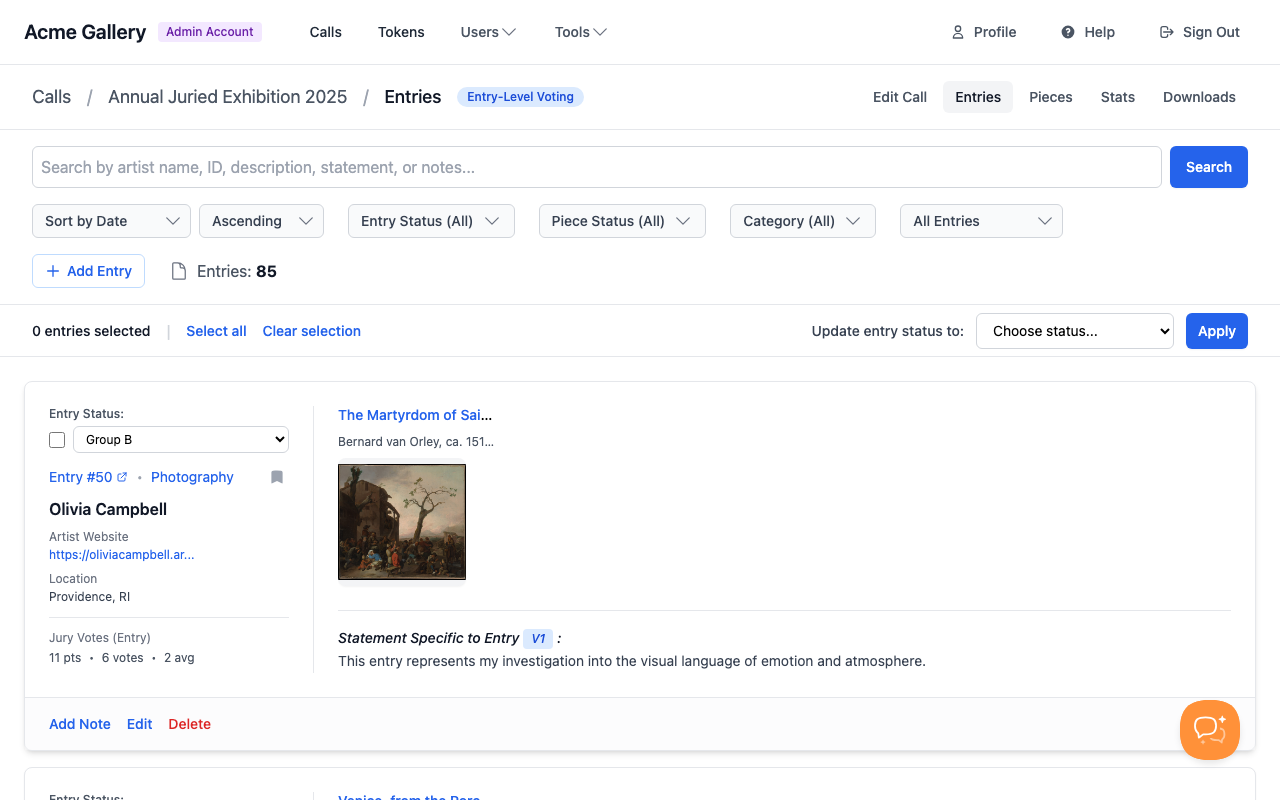
You'll land on a page with quick download options at the top and a powerful custom export builder below.
Quick Downloads
At the top of the page, you'll find four quick download buttons that handle the most common scenarios:
Complete Gallery Package
Best for: Archiving everything or creating a complete backup
This is the "everything and the kitchen sink" option. It includes: - All entry and artwork data in CSV format - All image files organized by artist - An HTML gallery you can view offline - Perfect for archiving or sharing with colleagues
Note: This is a large download that takes 5-10 minutes to prepare. You'll receive an email when it's ready.
Complete CSV Export
Best for: Quick data analysis without images
Want all your data but don't need the images? This gives you: - All entry and artwork data in CSV format - Faster processing (usually 2-5 minutes) - Same comprehensive data as the Gallery Package, just without the image files
Note: You'll receive an email when this is ready.
Entry Checklist
Best for: Printing a physical checklist for jury sessions or gallery prep
This creates a printable PDF checklist showing: - Artist names - Entry titles - Status information - Perfect for marking off entries during jury review
Note: This downloads immediately—no waiting!
Juror Votes
Best for: Analyzing voting patterns and juror scores
Get complete voting data including: - Which jurors voted for which pieces - Individual juror scores - Total points and vote counts - All in CSV format for easy analysis
Note: This also downloads immediately.
Custom CSV Export
Sometimes you need exactly the right data, and nothing more. That's where the Custom CSV Export comes in. Think of it as building your own data sandwich—you pick every ingredient.
Step 1: Choose Your Download Mode
You'll see two options at the top of the custom export form:
One row per artwork (default) - Each row represents a single piece of artwork - Best for: Detailed jury analysis, catalog creation, piece-by-piece review - Example: If an artist submitted 3 pieces, you'll get 3 rows
One row per entry - Each row represents an entire entry (all pieces grouped together) - Best for: Artist contact lists, entry-level analysis, mailing lists - Example: If an artist submitted 3 pieces, you'll get 1 row with entry-level info
Pro tip: When you switch to "One row per entry," artwork-specific fields (like title, dimensions, price) are automatically hidden since they don't apply at the entry level.
Step 2: Select Your Fields
Fields are organized into three categories:
Artist Information
- First Name, Last Name, Email — Contact basics
- Phone — Main phone number
- Business — Business name (if provided)
- Address, City, State, ZIP Code — Full mailing address
- Website — Artist's website URL
- Instagram — Instagram handle
- Statement — Artist's general statement
Entry Information
- Statement — Statement specific to this entry
- Category — Entry category
- Description — Entry description
- Source — How the artist found out about your call
- Entry ID — Unique identifier for the entry
Artwork Information
(Only available when "One row per artwork" is selected)
- Title — Artwork title
- Dimensions — Full dimensions string with labeled values (e.g.,
24 W × 36 H inches, or24 W × 36 H × 1.5 D incheswhen depth is enabled). You can switch the order between width-first and height-first in Platform Preferences. - Material — Medium/material used
- Price — Sale price (if applicable)
- Year — Year created
- Entry Status — Current entry status (e.g., "Accepted", "Rejected")
- Piece Status — Current piece status
- Points — Total juror points
- Votes — Number of votes received
- Description — Piece description
- File Type — Image file format
- Piece ID — Unique identifier for the piece
Helpful shortcuts: - Click "Select All" at the top to choose every field - Click "Clear All" to start fresh - Each category has its own "Select All" / "Deselect All" buttons
Step 3: Apply Filters
Filter your download to include only specific entries or pieces:
Entry Status Filter - Choose "All Entry Statuses" or select a specific status - Examples: Only show "Accepted" entries, or only "Submitted" entries
Piece Status Filter (Only available when "One row per artwork" is selected)
- Choose "All Piece Statuses" or select a specific status
- Examples: Only show "Accepted" pieces, or filter to "Waitlist" pieces
Real-world example: Want to create a catalog of only accepted artwork? Set Entry Status to "Accepted" and Piece Status to "Accepted", then select fields like Title, Dimensions, Material, and Artist Name.
Step 4: Include Images? (Optional)
Check the box labeled "Include Images in Download (Large)" if you want image files included in your download.
What happens: - Your download becomes a ZIP file containing both CSV data and image files - Images are saved in an images/ folder with structured filenames that include Entry ID, Piece ID, and artist name - Processing takes 5-10 minutes - You'll receive an email with a download link when ready
Leave it unchecked if you only need the CSV data: - Download starts immediately - No email needed—just click and download - Perfect for quick data analysis
Step 5: Generate Your Download
Click the "Generate Custom Download" button. If you included images, you'll see a friendly message letting you know your download is being prepared and you'll receive an email shortly.
Understanding Your Downloads
CSV Files
CSV files (Comma Separated Values) are spreadsheet files that open in Excel, Google Sheets, Numbers, or any spreadsheet program. Each row represents one entry or one piece (depending on your download mode), and each column is a field you selected.
Example CSV row: Jane,Smith,jane@example.com,"24 W × 36 H inches",Oil on canvas,$1200,2023,Accepted,45,12
Status Fields
Status fields are automatically converted to human-readable labels: - Entry Status shows values like "Accepted", "Rejected", "Show to Jury" - Piece Status shows values like "Submitted", "Accepted", "Waitlist"
No more mysterious numbers—everything is clear and readable!
Image Packages
When you include images, you'll receive a ZIP file containing: - entries_full.csv — Complete data export - images/ folder — All artwork images with structured filenames (see below) - gallery.html — Browseable HTML gallery (open in any web browser)
The ZIP file is organized logically, making it easy to find what you need.
Image Filenames
Image files use a structured naming format that includes stable identifiers:
Format: entry_{entry_id}_piece_{piece_id}_{artist_name}_thumb.jpg (thumbnail) and entry_{entry_id}_piece_{piece_id}_{artist_name}.jpg (full size)
Example: entry_12345_piece_67890_Jane_Smith_thumb.jpg
This format ensures you can reliably match images to their corresponding CSV data using Entry ID and Piece ID. These IDs are stable identifiers that won't change even if an artist updates their name or profile.
Email Notifications
For large downloads (anything with images), you'll receive an email at the address associated with your admin account. The email includes: - A direct download link (valid for 24 hours) - Information about what's included in your package - The call name for easy reference
Can't find the email? Check your spam folder, and make sure the email address on your admin account is correct. You can update it in your account settings.
Tips & Tricks
For jury sessions: - Use "Entry Checklist" for a quick printable list - Use "Juror Votes" after voting to analyze results - Filter custom exports by status to see only entries in a specific stage
For catalog creation: - Select "One row per artwork" mode - Choose fields like Title, Dimensions, Material, Price, Artist Name - Filter to "Accepted" status only - Include images for a complete package
For mailing lists: - Select "One row per entry" mode - Choose Artist Information fields (Name, Email, Address) - Filter by status if you only want to contact certain artists - Don't include images (faster processing)
For data analysis: - Export juror votes to see voting patterns - Use custom exports with Points and Votes fields to identify top-scoring pieces - Export multiple times with different filters to compare groups
Troubleshooting
"My download is taking forever!" - Downloads with images take 5-10 minutes—this is normal! - Check your email for the download link - Very large calls (thousands of entries) may take longer
"I didn't receive an email" - Check your spam/junk folder - Verify your email address in account settings - The download link expires after 24 hours—request a new one if needed
"The CSV looks weird in Excel" - Make sure Excel is set to use UTF-8 encoding - Try opening in Google Sheets instead - CSV files are plain text—they should work in any spreadsheet program
"I selected fields but they're not in my download" - Make sure you clicked "Generate Custom Download" after selecting fields - Check that you selected at least one field (the form won't submit without selections) - If you chose "One row per entry" mode, artwork fields won't appear (that's expected!)
Need More Help?
The downloader is designed to be flexible and powerful. If you're not sure which option to choose, start with a quick download option—they're designed to cover most common needs. For more specific requirements, experiment with the custom export builder. You can always generate another download if the first one isn't quite right!
Remember: Quick downloads are your friends for common tasks, but the custom export builder is there when you need something perfectly tailored to your workflow.