
How do I download files?
You can download entry data, images, and other files from any of your calls. Here's how.
Getting to the Downloads page
- Log in to your admin account
- Click "Calls" in the top navigation
- Click on the call you want to download from
- Click the Downloads button

Quick downloads
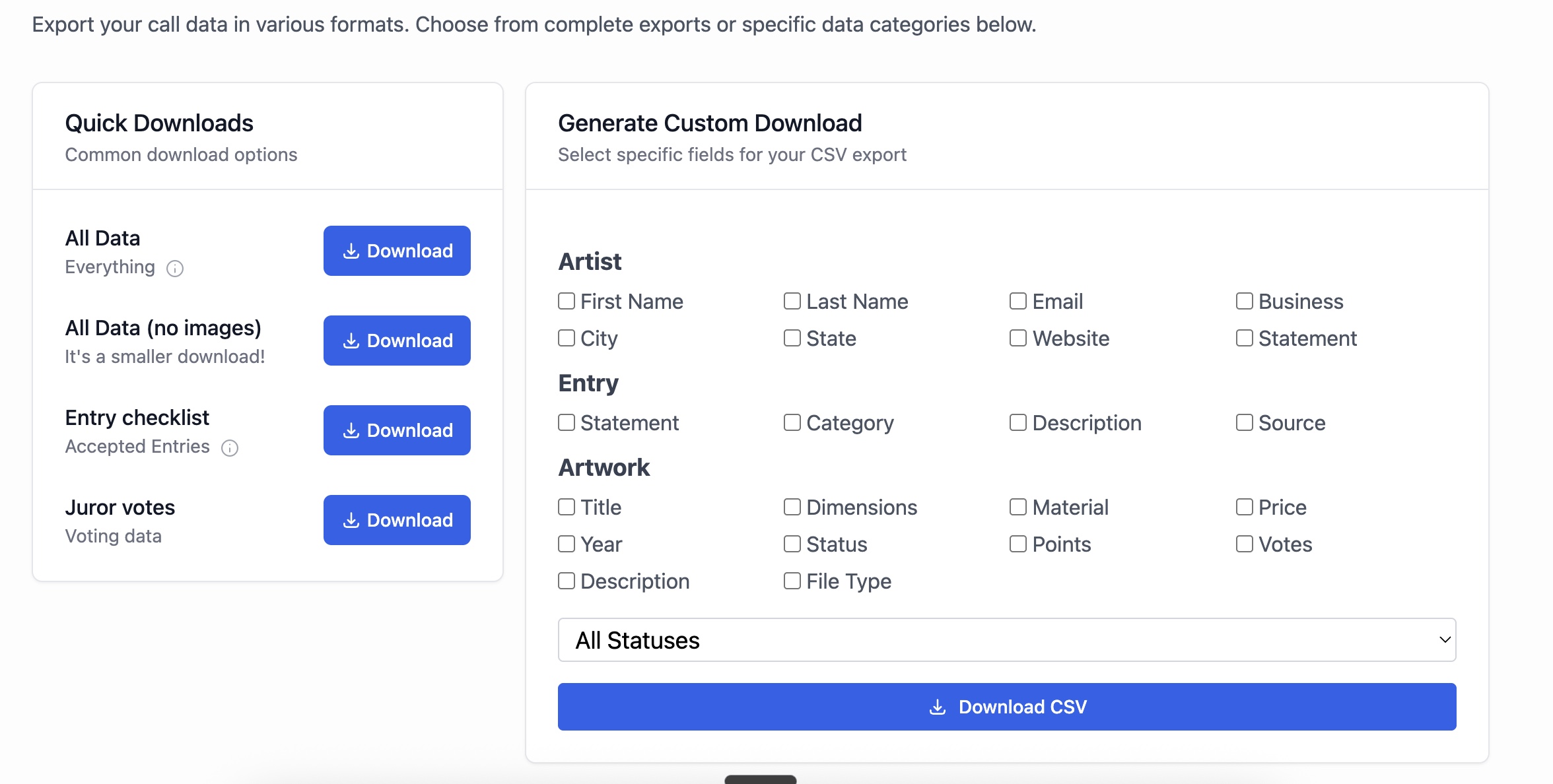
On the left side of the Downloads page, you'll see quick-download buttons for the most common items:
- All Images — downloads all submitted artwork as a zip file
- Entry Data (CSV) — a spreadsheet with all entry information
- Contact Info (CSV) — artist names and email addresses
Click any of these to start downloading immediately.
Custom CSV downloads
For more control, use the custom download builder on the right side of the page. You can:
- Select specific fields to include in your CSV (names, emails, dimensions, prices, custom answers, etc.)
- Filter by entry status — download data only for accepted entries, submitted entries, or any status
- Choose your format — CSV file that opens in Excel, Google Sheets, or Numbers
For a detailed guide to all download options, see How does the new downloader work?.
Need help?
If you have questions about downloading your data, contact us at hello@entrythingy.com.